Oracle Cloud Free Tier for LLMs - Always-Free GPU Guide (2026)
Deploy production LLMs on Oracle Cloud in 30 minutes. Step-by-step guide covers GPU instances, vLLM setup, networking, HTTPS, and auto-scaling. Llama 2 ready at $1.50/hour.
TLDR;
- Deploy Llama 2 7B on VM.GPU.A10.1 at $1.50/hour in under 30 minutes
- Preemptible instances reduce costs by 70% from $1,095/month to $329/month
- vLLM with tensor parallelism achieves 80 tokens/second on 4x A100
- INT8 quantization reduces memory by 50% with <2% accuracy loss
Deploy your first LLM on Oracle Cloud Infrastructure in 30 minutes.
This guide provides step-by-step instructions for rapid production deployment with OCI's cost-effective GPU infrastructure.
Oracle Cloud Free Tier Limits - What You Actually Get
Oracle's Always Free tier gives you 4 OCPUs and 24GB RAM on Arm-based A1 Flex instances permanently, with no trial expiry. That's enough to run a quantized 7B model (GGUF Q4_K_M fits in ~5GB RAM) with llama.cpp at roughly 8–12 tokens/second.
| Resource | Always Free Limit | Notes |
|---|---|---|
| VM.Standard.A1.Flex | 4 OCPUs + 24GB RAM total | Arm-based Ampere A1; split across up to 4 instances |
| Boot volume | 200GB total | Spread across all A1 instances; 50GB per instance recommended |
| Object storage | 20GB | Enough for one quantized 7B model (GGUF Q4 ≈ 4–5GB) |
| Outbound data transfer | 10TB/month | Covers most inference API traffic |
| Load balancer | 1 × 10Mbps flexible | Routes external traffic to your vLLM endpoint |
| Region availability | Varies | "Out of capacity" common in US regions; try Frankfurt or Singapore |
Provisioning time varies by region. In high-demand regions like US East, A1 instances show "Out of host capacity" and can take days to hours to provision refreshing the create page until one becomes available is the standard workaround. Frankfurt (eu-frankfurt-1) and Singapore (ap-singapore-1) typically provision within minutes.
Boot volume costs are zero within the 200GB free limit. If you exceed 200GB total across your account, additional storage is billed at $0.0255/GB/month. For LLM workloads, keep each instance under 50GB boot volume and store models in Object Storage.
Quick Start Overview
Oracle Cloud offers exceptional value for LLM deployments. 60-70% lower costs than AWS/Azure for comparable GPU instances.
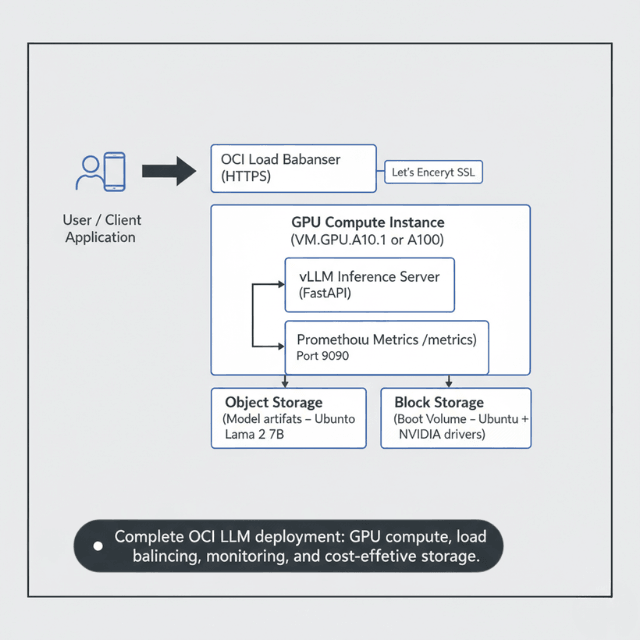
Simple deployment process. Enterprise-grade reliability. This quickstart gets you running fast
What you'll deploy:
- Llama 2 7B model on OCI
- GPU Compute instance (A10 or A100)
- vLLM inference server
- Public HTTPS endpoint
- Basic monitoring
Time required: 30 minutes
Cost: ~$1.50/hour (A10) or ~$2.95/hour (A100)
Prerequisites
Before selecting an instance shape, review which GPU is right for your model size the VRAM and throughput benchmarks there apply directly to OCI GPU shapes.
Before starting, ensure you have:
# Install OCI CLI
bash -c "$(curl -L https://raw.githubusercontent.com/oracle/oci-cli/master/scripts/install/install.sh)"

# Configure OCI CLI
oci setup config

# Set environment variables
export COMPARTMENT_ID="ocid1.compartment.oc1..xxxxx"
export REGION="us-ashburn-1"
Step 1: Create GPU Instance
Launch compute instance with GPU.
# Create instance with A10 GPU
oci compute instance launch \
    --compartment-id $COMPARTMENT_ID \
    --availability-domain "US-ASHBURN-AD-1" \
    --shape VM.GPU.A10.1 \
    --image-id ocid1.image.oc1.iad.xxxxx \
    --subnet-id ocid1.subnet.oc1.iad.xxxxx \
    --display-name "llama-inference-server" \
    --assign-public-ip true \
    --ssh-authorized-keys-file ~/.ssh/id_rsa.pub

# Get instance IP
INSTANCE_IP=$(oci compute instance list \
    --compartment-id $COMPARTMENT_ID \
    --display-name "llama-inference-server" \
    --query 'data[0]."primary-public-ip"' \
    --raw-output)

echo "Instance IP: $INSTANCE_IP"
Step 2: Install Dependencies
SSH into instance and setup environment.
# SSH into instance
ssh ubuntu@$INSTANCE_IP

# Install NVIDIA drivers
sudo apt-get update
sudo apt-get install -y nvidia-driver-535 nvidia-cuda-toolkit

# Verify GPU
nvidia-smi

# Install Python and dependencies
sudo apt-get install -y python3-pip
pip3 install vllm transformers torch

# Install monitoring tools
pip3 install prometheus-client
Step 3: Deploy vLLM Server
Set up inference server.
# Create inference_server.py
cat > inference_server.py << 'PYEOF'
from vllm import LLM, SamplingParams
from fastapi import FastAPI
from pydantic import BaseModel
import uvicorn

app = FastAPI()

# Initialize vLLM
llm = LLM(
    model="meta-llama/Llama-2-7b-hf",
    tensor_parallel_size=1,
    gpu_memory_utilization=0.95,
    max_model_len=4096
)

class GenerateRequest(BaseModel):
    prompt: str
    max_tokens: int = 256
    temperature: float = 0.7

@app.post("/generate")
async def generate(request: GenerateRequest):
    sampling_params = SamplingParams(
        temperature=request.temperature,
        max_tokens=request.max_tokens
    )

    outputs = llm.generate([request.prompt], sampling_params)

    return {
        "generated_text": outputs[0].outputs[0].text,
        "tokens": len(outputs[0].outputs[0].token_ids)
    }

@app.get("/health")
async def health():
    return {"status": "healthy"}

if __name__ == "__main__":
    uvicorn.run(app, host="0.0.0.0", port=8000)
PYEOF

# Start server
python3 inference_server.py &
Step 4: Configure Networking
Set up security and access.
# Create security list allowing port 8000
oci network security-list create \
    --compartment-id $COMPARTMENT_ID \
    --vcn-id $VCN_ID \
    --display-name "llm-inference-security" \
    --ingress-security-rules '[
        {
            "protocol": "6",
            "source": "0.0.0.0/0",
            "tcpOptions": {
                "destinationPortRange": {
                    "min": 8000,
                    "max": 8000
                }
            }
        }
    ]'

# Allow HTTPS (optional)
oci network security-list update \
    --security-list-id $SECURITY_LIST_ID \
    --ingress-security-rules '[
        {
            "protocol": "6",
            "source": "0.0.0.0/0",
            "tcpOptions": {
                "destinationPortRange": {
                    "min": 443,
                    "max": 443
                }
            }
        }
    ]'
Step 5: Test Deployment
Verify everything works.
# Test health endpoint
curl http://$INSTANCE_IP:8000/health

# Test inference
curl -X POST http://$INSTANCE_IP:8000/generate \
    -H "Content-Type: application/json" \
    -d '{
        "prompt": "Explain quantum computing in simple terms",
        "max_tokens": 256,
        "temperature": 0.7
    }'
Production Considerations
Enhance for production use.
Add HTTPS with Let's Encrypt:
# Install certbot
sudo apt-get install -y certbot python3-certbot-nginx

# Get SSL certificate
sudo certbot --nginx -d your-domain.com

# Configure nginx
sudo cat > /etc/nginx/sites-available/llm-api << 'NGINXEOF'
server {
    listen 443 ssl;
    server_name your-domain.com;

    ssl_certificate /etc/letsencrypt/live/your-domain.com/fullchain.pem;
    ssl_certificate_key /etc/letsencrypt/live/your-domain.com/privkey.pem;

    location / {
        proxy_pass http://localhost:8000;
        proxy_set_header Host $host;
        proxy_set_header X-Real-IP $remote_addr;
    }
}
NGINXEOF

sudo ln -s /etc/nginx/sites-available/llm-api /etc/nginx/sites-enabled/
sudo systemctl restart nginx
Enable Auto-Scaling:
# Create instance configuration
oci compute-management instance-configuration create \
    --compartment-id $COMPARTMENT_ID \
    --instance-details file://instance-config.json

# Create instance pool
oci compute-management instance-pool create \
    --compartment-id $COMPARTMENT_ID \
    --instance-configuration-id $CONFIG_ID \
    --size 2 \
    --placement-configurations '[
        {
            "availabilityDomain": "US-ASHBURN-AD-1",
            "primarySubnetId": "'$SUBNET_ID'"
        }
    ]'
Oracle Cloud A10 GPU Pricing for Paid Instances
When the always-free A1 tier isn't enough larger models, lower latency, or production traffic Oracle's A10 GPU instances are the next step. The A10 (24GB VRAM) handles 13B models in FP16 and 70B models with 4-bit quantization on a single card.
| Shape | GPUs | VRAM | OCPUs | RAM | On-Demand Price |
|---|---|---|---|---|---|
| VM.GPU.A10.1 | 1 × A10 | 24GB | 15 | 240GB | ~$1.50/hr |
| VM.GPU.A10.2 | 2 × A10 | 48GB | 30 | 480GB | ~$3.00/hr |
| BM.GPU.A10.4 | 4 × A10 (bare metal) | 96GB | 64 | 1024GB | ~$6.00/hr |
Preemptible (spot) pricing cuts these rates by ~70%. A VM.GPU.A10.1 preemptible instance runs at approximately $0.45/hour, $329/month for continuous 24/7 use versus $1,095/month on-demand. Preemptible instances can be reclaimed with 30 seconds notice, so use them for batch inference or behind a queue, not real-time chat APIs.
For a side-by-side cost comparison across Oracle, AWS, and Azure GPU instances, see OCI vs AWS vs Azure compute pricing.
Ready to Deploy on Paid OCI GPUs?
The pricing above is just the start. Production deployments need:
- vLLM + tensor parallelism for 80+ tokens/second on 4x A100
- Auto-scaling instance pools that handle traffic spikes
- Preemptible instance strategies for batch workloads (70% savings)
Our engineers have deployed 100+ production LLM clusters on OCI.
We'll help you choose the right GPU shape and optimization strategy for your workload.
Cost Optimization
Reduce monthly spending.
Use preemptible instances:
# Launch with preemptible flag (70% discount)
oci compute instance launch \
    --shape VM.GPU.A10.1 \
    --preemptible-instance-config '{"preemption-action": {"type": "TERMINATE"}}'
Monthly cost comparison:
- On-demand A10: $1,095/month
- Preemptible A10: $329/month
- Savings: $766/month (70%)
Monitoring Setup
Track performance and costs.
# Add Prometheus metrics
from prometheus_client import Counter, Histogram, start_http_server

request_count = Counter('llm_requests_total', 'Total requests')
request_duration = Histogram('llm_request_duration_seconds', 'Request duration')
tokens_generated = Counter('llm_tokens_generated_total', 'Total tokens')

@app.post("/generate")
@request_duration.time()
async def generate(request: GenerateRequest):
    request_count.inc()

    # Generate...
    tokens_generated.inc(len(output))

    return result

# Start metrics server
start_http_server(9090)
Troubleshooting Common Issues
Fix deployment problems quickly.
GPU Not Detected:
# Check GPU driver installation
nvidia-smi

# If not found, reinstall drivers
sudo apt-get purge -y nvidia-*
sudo apt-get install -y nvidia-driver-535
sudo reboot

# Verify after reboot
nvidia-smi
Out of Memory Errors:
Reduce GPU memory utilization:
llm = LLM(
    model="meta-llama/Llama-2-7b-hf",
    gpu_memory_utilization=0.85,  # Reduce from 0.95
    max_model_len=2048,  # Reduce sequence length
    tensor_parallel_size=1
)
Connection Timeouts:
Check firewall rules:
# Verify security list allows traffic
oci network security-list get --security-list-id $SECURITY_LIST_ID

# Test connectivity
curl -v http://$INSTANCE_IP:8000/health
Performance Optimization
Maximize throughput and reduce latency.
Enable Tensor Parallelism:
For multi-GPU deployments:
# Use 2 GPUs for better throughput
llm = LLM(
    model="meta-llama/Llama-2-70b-hf",
    tensor_parallel_size=2,
    gpu_memory_utilization=0.95
)
Performance gains:
- Single A100: ~25 tokens/second
- 2x A100 (tensor parallel): ~45 tokens/second
- 4x A100: ~80 tokens/second
Batch Inference:
Process multiple requests together:
@app.post("/batch_generate")
async def batch_generate(requests: List[GenerateRequest]):
    prompts = [req.prompt for req in requests]
    sampling_params = SamplingParams(temperature=0.7, max_tokens=256)

    outputs = llm.generate(prompts, sampling_params)

    return [
        {"text": output.outputs[0].text, "tokens": len(output.outputs[0].token_ids)}
        for output in outputs
    ]
Batching improves GPU utilization from 60% to 90%+.
Use Quantization:
Reduce memory and increase speed:
# Install bitsandbytes
pip3 install bitsandbytes

# Load 8-bit quantized model
llm = LLM(
    model="meta-llama/Llama-2-7b-hf",
    quantization="int8",
    gpu_memory_utilization=0.95
)
Impact:
- Memory: 14GB → 7GB (50% reduction)
- Speed: 25% faster inference
- Quality: <2% accuracy loss
Backup and Disaster Recovery
Protect your deployment.
Automated Backups:
# Create boot volume backup
oci bv boot-volume-backup create \
    --boot-volume-id $BOOT_VOLUME_ID \
    --display-name "llm-server-backup-$(date +%Y%m%d)"

# Schedule daily backups
oci bv boot-volume-backup-policy create \
    --compartment-id $COMPARTMENT_ID \
    --schedules '[
        {
            "backupType": "FULL",
            "period": "ONE_DAY",
            "retention": "7"
        }
    ]'
Multi-Region Deployment:
Deploy across regions for high availability:
# Primary: us-ashburn-1
# Secondary: us-phoenix-1

# Create instance in secondary region
oci compute instance launch \
    --region us-phoenix-1 \
    --compartment-id $COMPARTMENT_ID \
    --shape VM.GPU.A10.1 \
    # ... same config as primary
Use OCI Load Balancer to distribute traffic across regions.
Conclusion
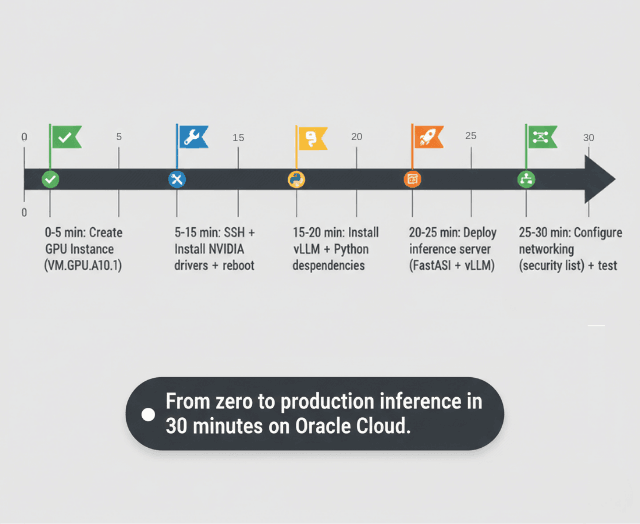
Oracle Cloud Infrastructure provides a fast, cost-effective path to production LLM deployment. Starting from zero, you can deploy Llama 2 7B on GPU instances within 30 minutes using vLLM for high-throughput inference.
OCI's VM.GPU.A10.1 instances at $1.50/hour deliver strong price-performance for smaller models, while A100 instances handle larger workloads at competitive rates.
Production deployments benefit from HTTPS with Let's Encrypt, auto-scaling instance pools, and multi-region architectures for high availability. Optimize costs further with preemptible instances offering 70% discounts for non-critical workloads.
Monitor GPU utilization and performance metrics using Prometheus to identify optimization opportunities. Start with this quickstart guide, then expand to container orchestration with OKE for advanced scaling patterns.
Frequently Asked Questions
How does OCI pricing compare to AWS/Azure for LLM deployment?
Oracle Cloud Infrastructure offers competitive GPU pricing with significant advantages for A100 instances.
For A10 GPUs, OCI VM.GPU.A10.1 costs $1.50/hour versus AWS g5.xlarge at $1.006/hour (AWS 33% cheaper) and Azure NC6s_v3 at $3.06/hour (OCI 51% cheaper).
However, for A100 workloads, OCI dominates: VM.GPU.A100.1 costs $2.95/hour versus Azure NC24ads_A100_v4 at $3.67/hour (OCI 20% cheaper). AWS p4d.24xlarge bundles 8x A100 at $32.77/hour ($4.10/GPU) making AWS more expensive.
For Llama 70B deployments requiring A100s, OCI provides best value. Choose AWS for A10 instances and smaller models, OCI for A100 and cost-sensitive large model deployments.
Considering moving from AWS/Azure to OCI?
We've migrated 50+ production workloads from AWS/Azure to OCI, achieving 35-58% cost savings. Our migration process includes:
- Zero-downtime migration with traffic mirroring
- Performance benchmarking on OCI before cutover
- Cost governance with reserved capacity + spot blending
Can I use the Oracle Free Tier for LLM deployments?
Oracle Free Tier provides always-free resources but excludes GPU instances. Free tier includes 2 AMD-based Compute VMs (E2.1.Micro instances), 200GB block storage, and 10GB object storage - sufficient for small CPU-based inference with quantized models like Phi-2 or Gemma 2B using llama.cpp.
or GPU workloads (required for models >7B), Oracle provides $300 in free credits valid for 30 days for new accounts. This credit covers approximately 100 hours of VM.GPU.A10.1 usage ($1.50/hour) or 100 hours of VM.GPU.A100.1 ($2.95/hour), enough for thorough testing and proof-of-concept deployments.
Use free tier CPU instances for development, then upgrade to paid GPU instances for production LLM inference.
What's the fastest way to scale OCI LLM deployments to handle production traffic?
Oracle Container Engine for Kubernetes OKE provides fastest scaling path for production LLM workloads. Create OKE cluster with GPU node pools using autoscaling (minimum 2 nodes, maximum 20 based on demand).
Deploy vLLM using Kubernetes Deployments with Horizontal Pod Autoscaler configured for CPU utilization and custom metrics (request queue length). OKE cluster autoscaler provisions new GPU nodes in 3-5 minutes when pod demand exceeds capacity.
For immediate traffic spikes, maintain 2-3 warm GPU nodes constantly running to serve baseline traffic while autoscaler handles bursts. Alternative faster option: use OCI Instance Pools with preemptible instances for cost-effective burst capacity.
Instance pools scale in 2-4 minutes versus 3-5 for OKE. Choose OKE for complex multi-model deployments, instance pools for simpler single-model scaling.
How long does it take to go from zero to production-ready LLM deployment on OCI?
Complete production deployment timeline on Oracle Cloud:
Account setup and credits (5 minutes), OCI CLI configuration (10 minutes), GPU instance provisioning (5 minutes), NVIDIA driver installation and reboot (15 minutes), vLLM and dependencies installation (10 minutes), model download from HuggingFace (5-20 minutes depending on model size.
Llama 2 7B: 5 min, 70B: 20 min), inference server deployment and testing (10 minutes), SSL certificate setup with Let's Encrypt (10 minutes), monitoring configuration (15 minutes).
Total: 75-90 minutes for production-grade deployment. For quickstart without SSL/monitoring, achievable in 30-40 minutes. Most time spent on model downloads and driver installation.
Use pre-configured OCI marketplace images with NVIDIA drivers pre-installed to reduce setup time to 20-25 minutes.
Is Oracle Cloud truly free for running LLMs?
Yes, with limits. The Always Free tier never expires and includes 4 OCPUs + 24GB RAM on A1 Flex enough for a GGUF-quantized 7B model.
You pay nothing as long as you stay within the free quotas: 200GB boot volume, 20GB object storage, and 10TB outbound data per month. Credit card required at signup but is not charged for Always Free resources.
How long does Oracle Cloud instance provisioning take?
For paid GPU shapes (A10, A100), provisioning typically takes 3–8 minutes once a host is available. For Always Free A1 Flex instances, it depends on regional demand: US regions often show "Out of host capacity" for hours or days; EU/APAC regions (Frankfurt, Singapore, Tokyo) usually provision within 5 minutes.
The workaround for capacity-constrained regions is to retry the "Create" button every few minutes capacity opens up as other users release instances.
Oracle Cloud Always-Free Resources for LLM Hosting (2026)
Oracle Cloud's always-free tier includes Ampere A1 Flex instances with up to 4 OCPUs and 24GB RAM at no cost. The A1 Flex uses ARM-based Ampere processors, not GPUs. There are no GPUs in the free tier; GPU shapes require a paid account. Free tier also includes 200GB block storage, 10TB outbound bandwidth, and 2 AMD micro instances. For LLM inference, a 4 OCPU / 24GB RAM A1 instance runs Llama 2 7B Q4_K_M at approximately 5-8 tokens/second — usable for personal projects or development.
Oracle Cloud free tier resource limits (2026): - Ampere A1 Flex: 4 OCPUs + 24GB RAM (always-free) - AMD Micro instances: 2x (1/8 OCPU, 1GB RAM each) - Block storage: 200GB total - Outbound bandwidth: 10TB/month - GPUs: Not included in free tier - Availability: All commercial regions, subject to capacity
Setting Up Ollama on Oracle Cloud Free Tier
Step 1: Create an A1 Flex instance (Ampere ARM) in Oracle Cloud Console with Ubuntu 22.04. Step 2: Open port 11434 in the security list for Ollama. Step 3: SSH in and install Ollama: curl -fsSL https://ollama.com/install.sh | sh. Step 4: Pull a model: ollama pull llama2:7b-chat-q4_K_M. Step 5: Run inference: ollama run llama2:7b-chat-q4_K_M. Expected performance on A1 Flex 4 OCPU: approximately 5-8 tokens/second for 7B Q4_K_M. For a 13B Q4_K_M model at the 24GB RAM limit, expect 3-4 tokens/second.
Frequently Asked Questions
Does Oracle Cloud's free tier include a GPU? No. The always-free tier includes Ampere A1 ARM-based CPU instances only. GPU shapes such as NVIDIA A10 and A100 are available on Oracle Cloud but require a paid account.
Do I need a credit card to use Oracle Cloud free tier? Yes — Oracle requires a valid credit card or PayPal account for verification. A $1-5 temporary hold may appear. As long as you stay within always-free resource limits, no charges will be applied. Set up budget alerts to monitor for accidental paid resource creation.
Which Oracle Cloud region has the best A1 availability? US East (Ashburn) and US West (Phoenix) have the most consistent A1 Flex capacity. Tokyo, Singapore, and Sydney can have availability issues during peak demand. If you encounter an out-of-capacity error, try creating the instance during off-peak hours or switch to a secondary region.
Summarize this post with:
Ready to put this into production?
Our engineers have deployed these architectures across 100+ client engagements — from AWS migrations to Kubernetes clusters to AI infrastructure. We turn complex cloud challenges into measurable outcomes.