Configure AKS GPU Nodes for LLM Workloads
Deploy LLMs on Azure Kubernetes Service with native GPU support, dynamic autoscaling, and full Kubernetes control, using V100, A100, or H100 nodes to run custom inference frameworks at scale while optimizing costs with spot and reserved instances.

TLDR;
- AKS Autopilot manages node sizing, upgrades, and security patches automatically
- Spot instances provide 60-80% discount for development and fault-tolerant workloads
- NVIDIA DCGM Exporter tracks GPU utilization, memory, and temperature per pod
- 1-year reserved instances save 40% for predictable production workloads
Azure Kubernetes Service provides enterprise-grade Kubernetes with native GPU support for demanding LLM workloads. Deploy any model architecture without platform constraints.
Scale dynamically from zero to hundreds of GPU nodes based on demand. Pay only for resources consumed. AKS eliminates cluster management complexity while maintaining full control over deployment configurations.
AKS key features summary:
| Feature | Capability |
|---|---|
| GPU support | V100, A100, H100 accelerators |
| Auto-scaling | Cluster and pod levels |
| Managed Kubernetes | Automatic upgrades and security patches |
| Azure integration | Container Registry, Key Vault, Azure Monitor |
| Multi-tenancy | Isolated environments for different teams |
| Cost optimization | Spot instances, right-sizing tools |
This guide covers GPU node pool creation, LLM deployment configurations, horizontal and cluster autoscaling, persistent storage for models, GPU monitoring with DCGM exporter, and cost reduction strategies.
AKS works best when you:
- Need Kubernetes flexibility
- Run multiple models simultaneously
- Use custom inference frameworks
- Implement complex deployment patterns
- Support multi-team environments
- Maintain hybrid cloud requirements
Organizations choose AKS for production LLM deployments requiring maximum control and customization compared to fully managed alternatives.
GPU Node Pool Configuration
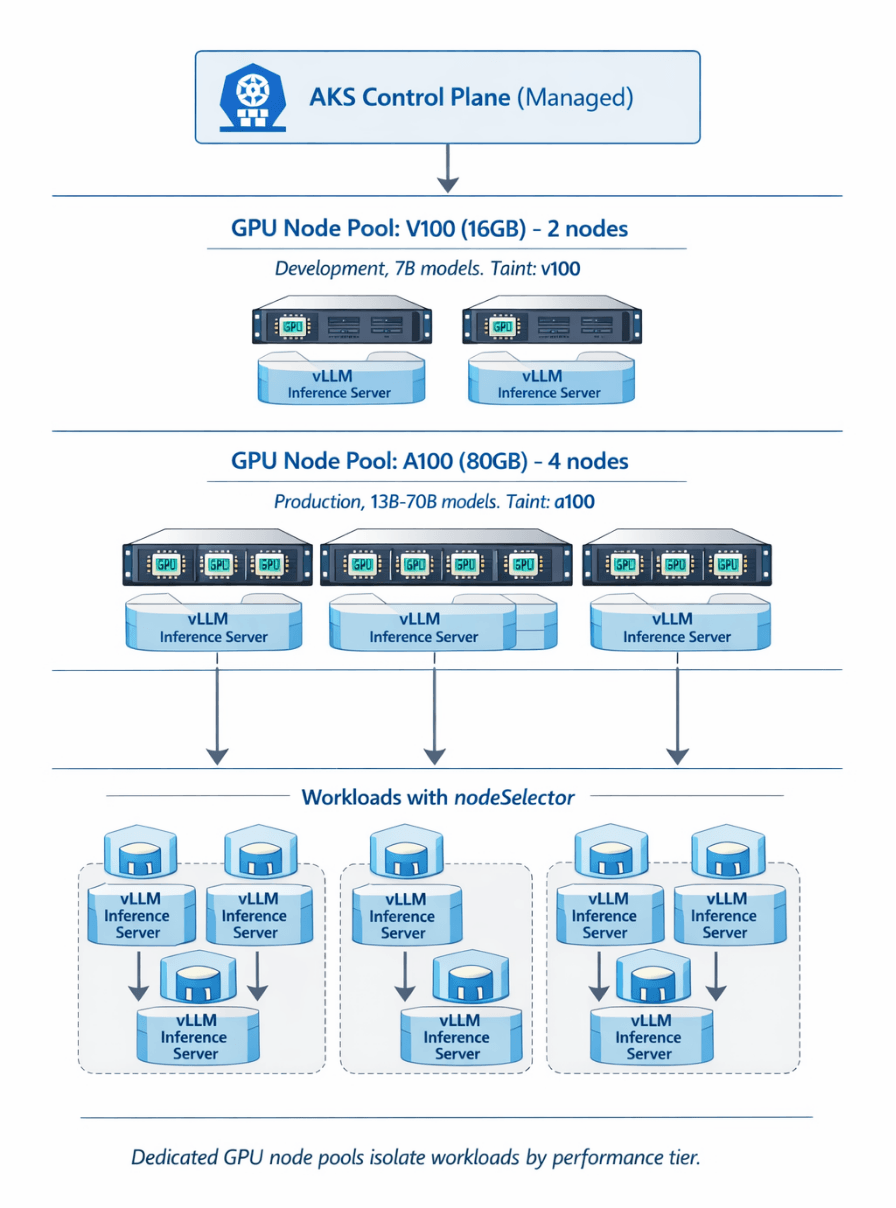
Create dedicated GPU node pools optimized for different workload types.
Create AKS cluster with system node pool:
# Create resource group
az group create \
    --name ml-production \
    --location eastus

# Create cluster
az aks create \
    --resource-group ml-production \
    --name llm-cluster \
    --node-count 2 \
    --node-vm-size Standard_D4s_v3 \
    --enable-managed-identity \
    --generate-ssh-keys \
    --network-plugin azure \
    --enable-cluster-autoscaler \
    --min-count 1 \
    --max-count 5
Add V100 node pool for development:
az aks nodepool add \
    --resource-group ml-production \
    --cluster-name llm-cluster \
    --name v100pool \
    --node-count 1 \
    --node-vm-size Standard_NC6s_v3 \
    --enable-cluster-autoscaler \
    --min-count 0 \
    --max-count 3 \
    --node-taints sku=gpu:NoSchedule \
    --labels workload=ml hardware=gpu sku=v100
Add A100 node pool for production:
az aks nodepool add \
    --resource-group ml-production \
    --cluster-name llm-cluster \
    --name a100pool \
    --node-count 2 \
    --node-vm-size Standard_NC24ads_A100_v4 \
    --enable-cluster-autoscaler \
    --min-count 1 \
    --max-count 10 \
    --node-taints sku=gpu:NoSchedule \
    --labels workload=ml hardware=gpu sku=a100
Install NVIDIA device plugin:
# Get credentials
az aks get-credentials \
    --resource-group ml-production \
    --name llm-cluster

# Install plugin
kubectl apply -f https://raw.githubusercontent.com/NVIDIA/k8s-device-plugin/main/nvidia-device-plugin.yml

# Verify GPUs detected
kubectl get nodes -o custom-columns=NAME:.metadata.name,GPUs:.status.capacity.'nvidia\.com/gpu'
Model Deployment and Auto-Scaling
Deploy LLM with GPU resources and configure horizontal pod autoscaling.
# llama-deployment.yaml
apiVersion: apps/v1
kind: Deployment
metadata:
  name: llama-inference
  namespace: ml-production
spec:
  replicas: 2
  selector:
    matchLabels:
      app: llama-inference
  template:
    metadata:
      labels:
        app: llama-inference
    spec:
      nodeSelector:
        workload: ml
        sku: a100
      tolerations:
      - key: sku
        operator: Equal
        value: gpu
        effect: NoSchedule
      containers:
      - name: model-server
        image: your-acr.azurecr.io/llama-vllm:latest
        ports:
        - containerPort: 8000
        resources:
          requests:
            nvidia.com/gpu: 1
            cpu: "8"
            memory: "64Gi"
          limits:
            nvidia.com/gpu: 1
            cpu: "16"
            memory: "128Gi"
        env:
        - name: MODEL_PATH
          value: "/models/llama-70b"
        - name: GPU_MEMORY_UTILIZATION
          value: "0.95"
        volumeMounts:
        - name: model-storage
          mountPath: /models
          readOnly: true
      volumes:
      - name: model-storage
        persistentVolumeClaim:
          claimName: model-pvc
---
apiVersion: v1
kind: Service
metadata:
  name: llama-service
spec:
  selector:
    app: llama-inference
  ports:
  - port: 80
    targetPort: 8000
  type: LoadBalancer
Configure horizontal pod autoscaler:
# llama-hpa.yaml
apiVersion: autoscaling/v2
kind: HorizontalPodAutoscaler
metadata:
  name: llama-hpa
  namespace: ml-production
spec:
  scaleTargetRef:
    apiVersion: apps/v1
    kind: Deployment
    name: llama-inference
  minReplicas: 2
  maxReplicas: 20
  metrics:
  - type: Resource
    resource:
      name: cpu
      target:
        type: Utilization
        averageUtilization: 70
  - type: Resource
    resource:
      name: memory
      target:
        type: Utilization
        averageUtilization: 80
  behavior:
    scaleDown:
      stabilizationWindowSeconds: 300
      policies:
      - type: Percent
        value: 50
        periodSeconds: 60
    scaleUp:
      stabilizationWindowSeconds: 0
      policies:
      - type: Percent
        value: 100
        periodSeconds: 30
      selectPolicy: Max
Configure cluster autoscaler:
# Update node pool autoscaler
az aks nodepool update \
    --resource-group ml-production \
    --cluster-name llm-cluster \
    --name a100pool \
    --update-cluster-autoscaler \
    --min-count 1 \
    --max-count 15

# Configure scale-down parameters
az aks update \
    --resource-group ml-production \
    --name llm-cluster \
    --cluster-autoscaler-profile \
        scale-down-delay-after-add=10m \
        scale-down-unneeded-time=10m \
        scale-down-utilization-threshold=0.5
Storage and GPU Monitoring
Configure persistent storage for models and monitor GPU utilization.
Azure Files for model storage:
# model-storage.yaml
apiVersion: v1
kind: PersistentVolume
metadata:
  name: model-pv
spec:
  capacity:
    storage: 500Gi
  accessModes:
  - ReadOnlyMany
  storageClassName: azurefile-premium
  azureFile:
    secretName: azure-storage-secret
    shareName: llm-models
    readOnly: true
---
apiVersion: v1
kind: PersistentVolumeClaim
metadata:
  name: model-pvc
  namespace: ml-production
spec:
  accessModes:
  - ReadOnlyMany
  storageClassName: azurefile-premium
  resources:
    requests:
      storage: 500Gi
NVIDIA DCGM Exporter for GPU monitoring:
# dcgm-exporter.yaml
apiVersion: apps/v1
kind: DaemonSet
metadata:
  name: nvidia-dcgm-exporter
  namespace: kube-system
spec:
  selector:
    matchLabels:
      app: nvidia-dcgm-exporter
  template:
    metadata:
      labels:
        app: nvidia-dcgm-exporter
    spec:
      nodeSelector:
        hardware: gpu
      tolerations:
      - key: sku
        operator: Equal
        value: gpu
        effect: NoSchedule
      containers:
      - name: nvidia-dcgm-exporter
        image: nvcr.io/nvidia/k8s/dcgm-exporter:3.1.8-3.1.5-ubuntu20.04
        ports:
        - containerPort: 9400
          name: metrics
        securityContext:
          capabilities:
            add:
            - SYS_ADMIN
        volumeMounts:
        - name: pod-gpu-resources
          readOnly: true
          mountPath: /var/lib/kubelet/pod-resources
      volumes:
      - name: pod-gpu-resources
        hostPath:
          path: /var/lib/kubelet/pod-resources
GPU Utilization 60-85% = healthy. 40% = over-provisioned. We set up the dashboards.
DCGM Exporter tracks utilization, memory, temperature, and power. Prometheus + Grafana turn metrics into actionable dashboards.
We help you:
- Deploy NVIDIA DCGM Exporter – DaemonSet on GPU nodes, metrics on port 9400
- Create Prometheus alerts – Utilization >90% for 15min, memory >95%, temperature >85°C
- Build Grafana dashboards – Per-pod GPU metrics, node-level aggregation
- Implement capacity planning – 60-85% utilization target, scale before hitting limits
Cost Optimization Strategies
Reduce GPU infrastructure costs through spot instances and reserved capacity.
Create spot instance node pool:
az aks nodepool add \
    --resource-group ml-production \
    --cluster-name llm-cluster \
    --name a100spot \
    --priority Spot \
    --eviction-policy Delete \
    --spot-max-price -1 \
    --node-vm-size Standard_NC24ads_A100_v4 \
    --enable-cluster-autoscaler \
    --min-count 0 \
    --max-count 5 \
    --node-taints kubernetes.azure.com/scalesetpriority=spot:NoSchedule \
    --labels priority=spot workload=ml
| Instance | On-Demand | Spot (approx) | Savings per hour | Savings per month (per instance) |
|---|---|---|---|---|
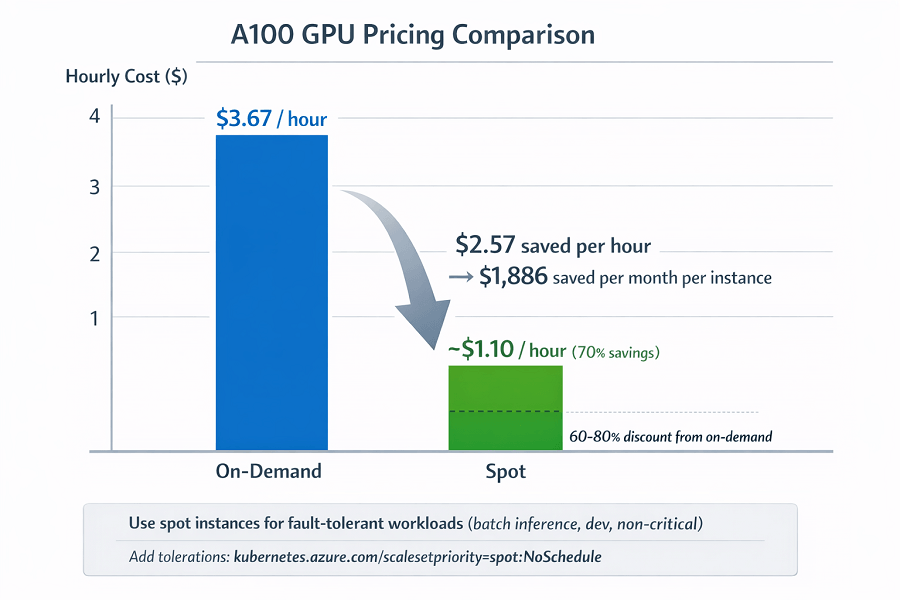
| Regular A100 | $3.67/hour | ~$1.10/hour | $2.57 | $1,886 |
Spot discount range: 60-80% off on-demand
Deploy workloads to spot nodes:
spec:
  template:
    spec:
      nodeSelector:
        priority: spot
      tolerations:
      - key: kubernetes.azure.com/scalesetpriority
        operator: Equal
        value: spot
        effect: NoSchedule
Purchase reserved instances for predictable workloads:
# 1-year reservation saves 40%
az reservations reservation-order purchase \
    --reservation-order-id "order-id" \
    --sku Standard_NC24ads_A100_v4 \
    --location eastus \
    --quantity 3 \
    --term P1Y
Scheduled scaling reduces costs during off-hours:
# scheduled-scaler.yaml
apiVersion: batch/v1
kind: CronJob
metadata:
  name: scale-down-night
spec:
  schedule: "0 22 * * *"
  jobTemplate:
    spec:
      template:
        spec:
          serviceAccountName: cluster-scaler
          containers:
          - name: kubectl
            image: bitnami/kubectl:latest
            command:
            - /bin/sh
            - -c
            - kubectl scale deployment llama-inference --replicas=1
          restartPolicy: OnFailure
Instance type comparison helps optimize costs. GPU Instance Types and Pricing
| Instance Type | GPU | VRAM | On-Demand Price | Throughput (tok/sec) | Best For |
|---|---|---|---|---|---|
| Standard_NC6s_v3 | V100 | 16GB | $3.06/hour | ~80 | 7B-13B models, development |
| Standard_NC24ads_A100_v4 | A100 | 80GB | $3.67/hour | ~150 | Best value for production (13B-70B models) |
| Standard_ND96asr_v4 | 8× A100 | 640GB total | $27.20/hour | ~600 | 70B+ models, high throughput |
Conclusion
AKS GPU configuration provides production-ready infrastructure for LLM deployments requiring Kubernetes flexibility and control. Dedicated GPU node pools isolate workloads by performance tier.
Horizontal pod autoscaling and cluster autoscaling respond to traffic dynamically. Persistent storage enables efficient model loading. NVIDIA DCGM Exporter tracks GPU utilization and temperature. Spot instances reduce costs by 60-80% for fault-tolerant workloads. Reserved instances provide 40% savings for predictable production workloads.
Organizations running multiple models or requiring custom deployment patterns choose AKS over fully managed alternatives. Start with NC24ads_A100_v4 node pool for balanced cost-performance.
Enable autoscaling with appropriate thresholds. Implement GPU monitoring for visibility. Use spot instances for development and reserved instances for production. Your Kubernetes deployment scales efficiently while optimizing infrastructure costs.
FAQs
1. When should I choose AKS over Azure ML managed endpoints?
| Scenario | Choose AKS | Choose Azure ML Managed Endpoints |
|---|---|---|
| Custom inference framework | ✅ Not in Azure ML | ❌ |
| Multiple models sharing GPU node pools | ✅ | ❌ |
| Complex deployment patterns (canary, blue-green, A/B) | ✅ | ❌ |
| Persistent connections (WebSocket) | ✅ | ❌ |
| GPU node tuning (kernel parameters, custom device plugin) | ✅ | ❌ |
| Simpler deployment – model and framework supported by Azure ML | ❌ | ✅ (less operational overhead) |
2. How do I provision model storage for fast loading across autoscaling pods?
Storage optimization pattern:
- Use Azure Files Premium with
ReadOnlyManyaccess mode - Pre-load models on the share before deployment
- Mount to all pods at
/models - First pod loads from file share (slow, but pre-loaded)
- Subsequent pods mount the same volume – models already in OS page cache
- Second pod start <5 seconds
- Never download models from container registry at pod start – adds 2-5 minutes to scaling events
3. How do I interpret DCGM GPU metrics for capacity planning?
| Metric | Healthy Range | Action Threshold |
|---|---|---|
| GPU Utilization | 60-85% | <40% = over-provisioned; >90% sustained = approaching limit, scale up |
| GPU Memory Used | Leave 5-10% headroom | >95% = OOM risk, inference failures |
| Temperature | — | >85°C = investigate cooling or workload pattern |
| Power Draw | — | >90% of TDP = sustained max compute |
Set Prometheus alerts: utilization >90% for 15min (scale not keeping up), memory >95% (OOM risk), temperature >85°C (hardware stress), power >90% of TDP (sustained max compute).