Increase Throughput 2-3x with vLLM Serving
Increase LLM throughput 2–3x with vLLM serving. Learn PagedAttention, continuous batching, AWQ quantization, and production deployment on NVIDIA GPUs.

TLDR;
- 2-3x higher throughput than traditional serving through PagedAttention and continuous batching
- Llama 2 70B on 4x A100 achieves 2,200 tokens/second with 256 concurrent users
- PagedAttention cuts memory waste by 55-80% through dynamic allocation
- AWQ 4-bit quantization reduces memory 4x, improves performance 10-20%
Deploy production-grade LLM inference with vLLM on bare metal servers and achieve 2-3x higher throughput than traditional serving methods. This guide covers installation, optimization, monitoring, and scaling strategies for maximum performance on NVIDIA GPUs.
vLLM delivers the best throughput-to-cost ratio for LLM inference through PagedAttention and continuous batching. Traditional LLM serving wastes GPU memory by pre-allocating memory for the maximum sequence length. If your limit is 4,096 tokens but the average request uses 512 tokens, you waste 87% of your memory. PagedAttention solves this by storing attention key-value tensors in non-contiguous memory blocks, like virtual memory in operating systems. Memory allocates dynamically as requests generate tokens, cutting memory waste by 55-80%. Continuous batching fills the gaps by adding new requests to the batch as soon as any request completes, keeping GPUs fully utilized. Real numbers prove the impact: vLLM serves Llama 2 70B on 4x A100 GPUs at 2,200 tokens per second with 256 concurrent users, which is 2.3x faster than Text Generation Inference and 3.1x faster than vanilla PyTorch serving.
Installation and Setup
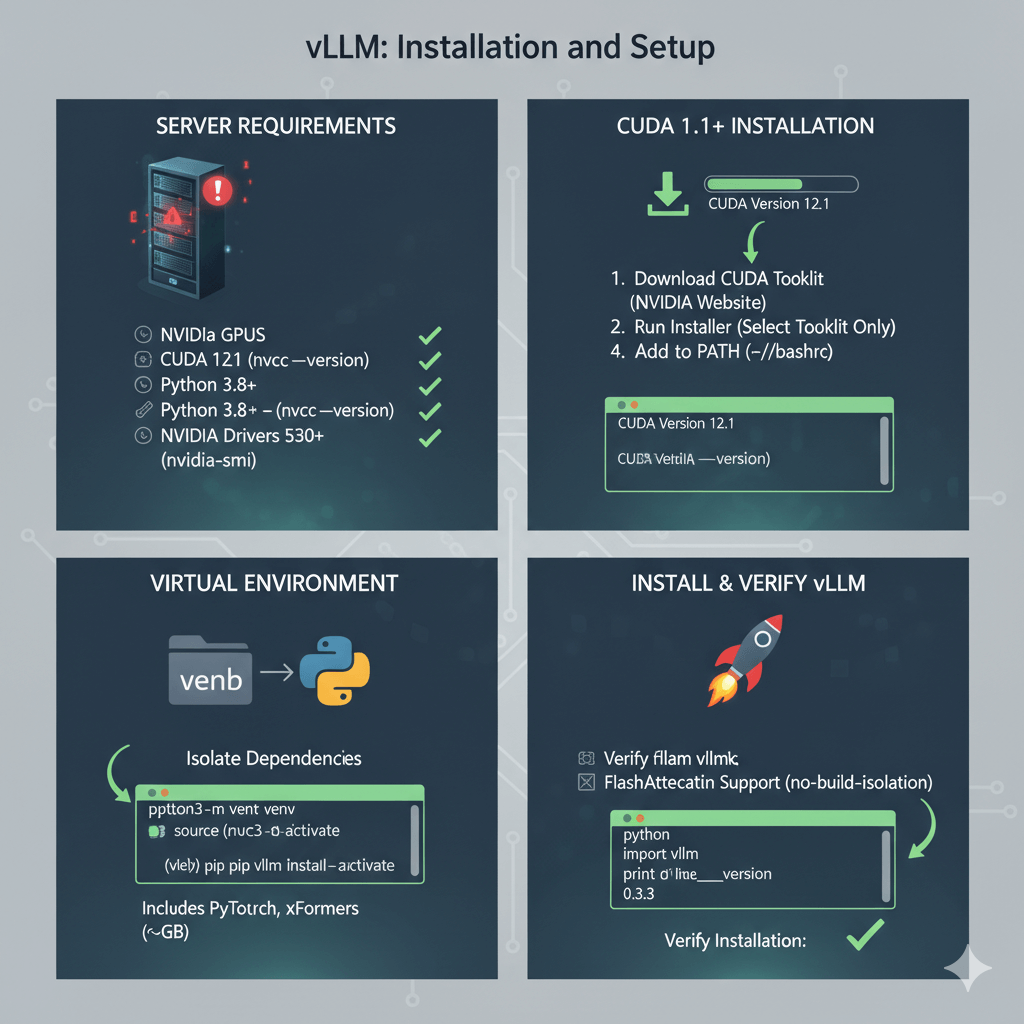
Install vLLM on your bare metal server with NVIDIA GPUs. You need CUDA 12.1 or later, Python 3.8+, and NVIDIA drivers 530+. Check your driver version with nvidia-smi to verify you have driver version 530 or higher.
If you don't have CUDA 12.1 or later, download and install it. Download CUDA 12.1 from NVIDIA's website and run the installer, selecting only the CUDA Toolkit if you already have drivers installed. Add CUDA to your PATH by appending the bin and lib64 directories to your bashrc file, then verify the installation with nvcc --version.
Create a virtual environment for vLLM to isolate dependencies. Install vLLM via pip, which includes PyTorch, xFormers, and other required dependencies. The package is about 2GB due to PyTorch and CUDA libraries. For better performance, install FlashAttention support as well. Verify the installation by importing vLLM in Python and checking the version number.
Production Server Configuration
Configure vLLM for production workloads with OpenAI-compatible endpoints. Start a production API server that serves your model across multiple GPUs using tensor parallelism. The server exposes /v1/completions and /v1/chat/completions endpoints compatible with OpenAI's API, making integration straightforward for existing applications.
For maximum performance, tune parameters based on your hardware. Set tensor-parallel-size equal to the number of GPUs in your server to split the model evenly across all GPUs. Use gpu-memory-utilization between 0.90 and 0.95 for production deployments, which provides good capacity with a safety margin. Configure max-model-len based on your context requirements, and max-num-batched-tokens to control the maximum tokens processed in one batch. Set max-num-seqs to define maximum concurrent sequences, with higher values providing better throughput for many small requests. Add swap-space to handle traffic spikes, and disable request logging in production to reduce overhead.
Embed vLLM directly in Python applications for custom batching and request handling. Initialize the model with your desired tensor parallelism, memory utilization, and context length settings. Configure sampling parameters including temperature, top-p, and max tokens. Generate outputs by passing prompts and sampling parameters, which gives you full control over the inference pipeline.
Performance Optimization
Maximize throughput and minimize latency through careful parameter tuning. GPU memory utilization controls the tradeoff between capacity and stability. Conservative settings of 0.85-0.90 work best for variable traffic patterns, leaving headroom for request spikes. Balanced settings of 0.90-0.95 suit most production deployments with good capacity and safety margin. Aggressive settings of 0.95-0.98 provide maximum capacity but should only be used with consistent traffic patterns and active monitoring.
Test different utilization levels with your actual traffic pattern. Monitor GPU memory during load tests with nvidia-smi, and if you see out-of-memory errors, reduce utilization by 0.05 increments until stable.
Batch size impacts both throughput and latency. Larger batches increase throughput but also increase latency. For high throughput with many short requests, use larger max-num-batched-tokens values of 32,768 and higher max-num-seqs values of 512. For low latency with fewer long requests, use smaller batch sizes of 8,192 tokens and fewer sequences of 64. Benchmark with your specific request patterns to find the optimal configuration.
Quantization reduces memory usage and can increase throughput. vLLM supports AWQ 4-bit and GPTQ quantization methods. Serve AWQ quantized models by specifying the quantization parameter when starting the server. AWQ reduces memory by approximately 4x with minimal quality loss, allowing Llama 2 70B to fit on 2x A100 40GB instead of 4x. Performance improves by 10-20% due to reduced memory bandwidth requirements.
For models exceeding single-server GPU limits, use multi-node tensor parallelism. This requires a Ray cluster with GPU nodes and fast interconnect such as InfiniBand for production. Start a Ray cluster on the head node, join worker nodes to the cluster, then serve with tensor parallelism split across multiple servers. This approach splits the model across 8 or more GPUs on multiple physical servers.
Monitoring and Production Deployment
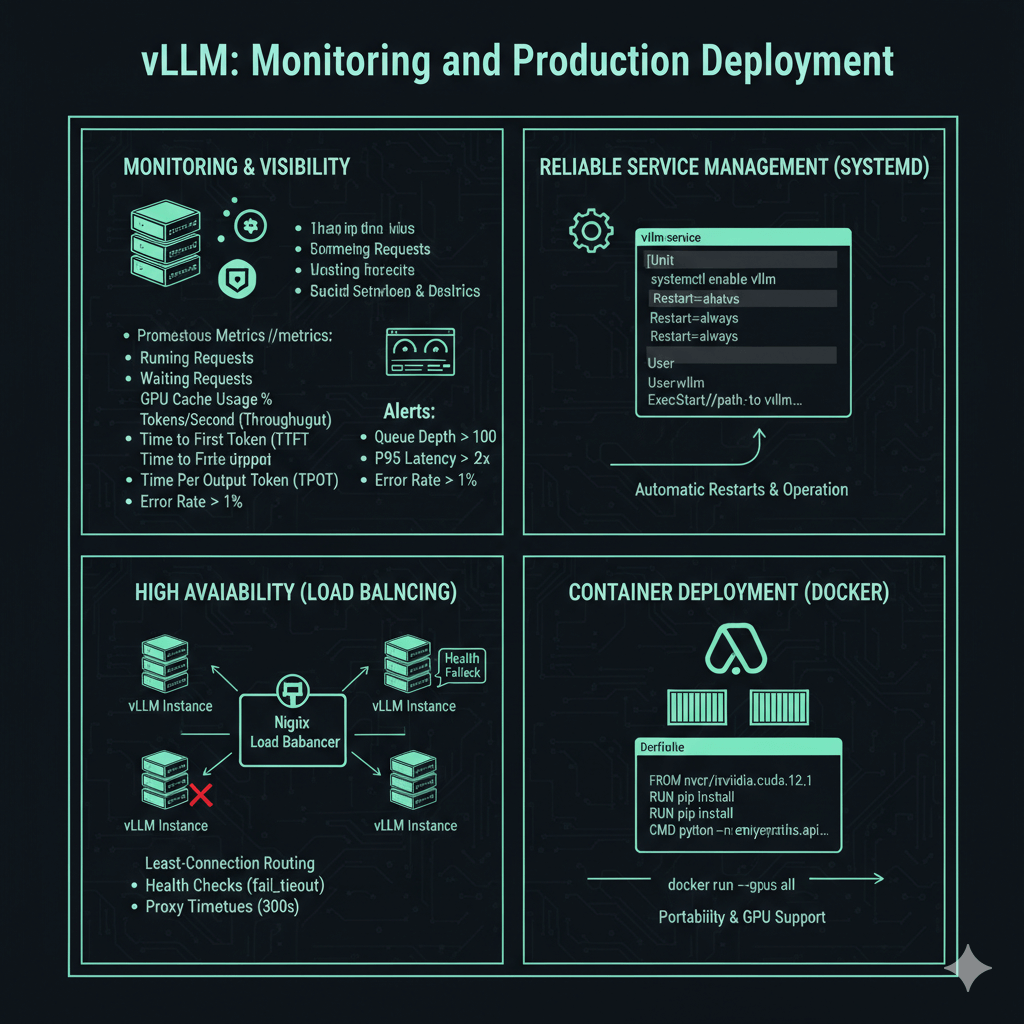
Production deployments require monitoring and reliable service management. vLLM exposes Prometheus metrics at the /metrics endpoint, providing visibility into system performance. Key metrics include the number of running requests, waiting requests in the queue, GPU cache usage percentage, average generation throughput in tokens per second, average time to first token, and average time per output token.
Configure Prometheus to scrape vLLM metrics every 15 seconds. Create Grafana dashboards tracking throughput over time, latency percentiles (P50, P95, P99), queue depth, GPU utilization, and error rates. Set up alerts for queue depth exceeding 100 (capacity warning), P95 latency exceeding 2x baseline (performance degradation), GPU memory above 98% (out-of-memory risk), and error rate above 1% (system issues).
Run vLLM as a systemd service for automatic restarts and reliable operation. Create a systemd unit file that starts vLLM with your production configuration, sets the service to restart automatically on failure, and runs under a dedicated user account. Enable the service to start on boot and monitor status with systemctl commands.
For high availability, run multiple vLLM instances behind a load balancer. Configure nginx or another load balancer with least-connection routing to send requests to the least busy server. Add health checks with fail timeouts to automatically remove unhealthy instances. Set appropriate proxy timeouts for long-running inference requests, typically 300 seconds for read timeout.
Deploy vLLM in containers for easier deployment and portability. Create a Dockerfile based on the NVIDIA CUDA image, install vLLM via pip, and configure the container to start the API server with your desired parameters. Run containers with GPU support using the --gpus flag to expose all GPUs to the container.
Conclusion
vLLM provides production-ready LLM inference with 2-3x better throughput than traditional serving methods through PagedAttention and continuous batching. Start with conservative GPU memory utilization of 0.90, then tune batch sizes and quantization based on your traffic patterns and quality requirements. Deploy with systemd for single-server reliability or behind load balancers for high availability. Monitor key metrics including throughput, latency percentiles, and queue depth to identify capacity issues before they impact users. For teams needing maximum performance on NVIDIA GPUs with straightforward deployment, vLLM offers an excellent balance of simplicity and efficiency for bare metal LLM serving.