TensorRT-LLM FP8 on A100 - Quantization Setup Guide (2026)
Boost LLM inference 20–40% with TensorRT-LLM. Learn model conversion, INT8/FP8 quantization, and production deployment for NVIDIA GPUs.
TLDR;
- 20-40% better throughput than vLLM or HuggingFace Text Generation Inference
- Llama 2 70B on 4x A100 reaches 2,800 tokens/second versus 2,200 with vLLM
- INT8 quantization increases throughput 30-50% with minimal quality loss
- FP8 on H100 delivers 2x speedup through native hardware support
Optimize your LLM inference with TensorRT-LLM and achieve 20-40% better performance than vLLM or HuggingFace Text Generation Inference.
This guide covers model conversion, optimization techniques, and production deployment strategies for NVIDIA GPUs. TensorRT-LLM squeezes every drop of performance from NVIDIA GPUs through low-level optimizations and hardware-specific compilation.
The framework compiles models to TensorRT engines optimized specifically for your GPU architecture, meaning an A100 engine differs from an H100 engine. Each maximizes the target hardware's capabilities including tensor cores, memory hierarchy, and instruction pipelines.
Performance gains are substantial. TensorRT-LLM serves Llama 2 70B on 4x A100 at 2,800 tokens per second while vLLM achieves 2,200 tokens per second on the same hardware, representing 27% faster throughput.
For smaller models, gains increase. Llama 2 7B on a single A100 reaches 4,500 tokens per second with TensorRT-LLM versus 3,200 tokens per second with vLLM, delivering 40% faster performance.
The tradeoff is complexity, as TensorRT-LLM requires model conversion, engine building, and lower-level configuration while vLLM works with HuggingFace models directly. Choose TensorRT-LLM when you need maximum throughput, have engineering resources for optimization, and serve specific models long-term.
Installation and Model Conversion
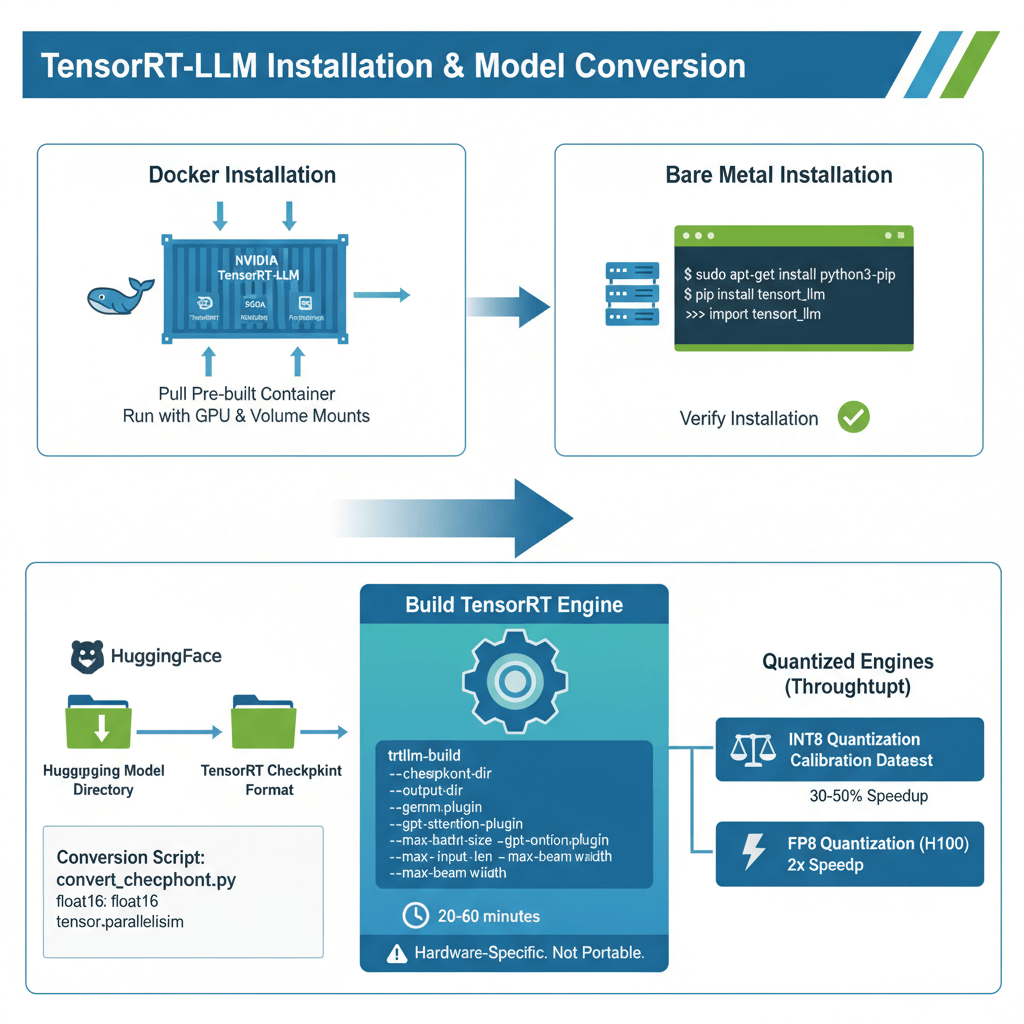
Install TensorRT-LLM from NVIDIA's official repository using Docker or native installation. For Docker installation, pull the pre-built container from NVIDIA's container registry and run with GPU access and volume mounts for model storage. The container includes all dependencies including TensorRT, CUDA libraries, and Python bindings.
For bare metal installation, install system dependencies including python3-pip and python3-dev, then install TensorRT-LLM via pip from NVIDIA's PyPI index. Verify installation by importing tensorrt_llm in Python and checking the version number.
Convert HuggingFace models to TensorRT checkpoints as the first step. Download your model from HuggingFace, then use the provided conversion script to convert HuggingFace weights to TensorRT checkpoint format.
Specify the model directory, output directory, data type (typically float16), and tensor parallelism size for multi-GPU deployments. This conversion prepares weights in the format TensorRT expects.
Build the TensorRT engine by compiling the checkpoint to an optimized engine. Use the trtllm-build command with parameters including checkpoint directory, output directory, plugin settings, and sizing constraints.
Enable optimized matrix multiplication kernels with gemm_plugin and use fused attention kernels with gpt_attention_plugin.
Set max_batch_size for maximum concurrent requests, max_input_len for maximum prompt length, max_output_len for maximum generation length, and max_beam_width for beam search (1 for greedy decoding).
Engine building takes 20-60 minutes depending on model size and GPU. The resulting engine is hardware-specific and not portable across different GPU types.
For maximum throughput, build quantized engines with INT8 or FP8 precision. Calibrate for INT8 quantization using a representative dataset, then build the INT8 engine with the quantized checkpoint. INT8 quantization increases throughput by 30-50% with minimal quality loss, while FP8 quantization on H100 delivers 2x speedup.
Running Inference and Production Deployment
Deploy the TensorRT engine for inference using the Python API or production servers. For basic inference, load the engine with ModelRunner and run inference by generating outputs with your prompts and sampling parameters. This provides direct programmatic access to the engine.
For production deployments, use NVIDIA Triton Inference Server. Create a model repository directory structure, copy your TensorRT engine files to the model version directory, and create a Triton configuration file defining input/output specifications and instance group settings for GPU allocation.
Start Triton server with your model repository, and Triton provides HTTP and gRPC APIs with automatic batching and comprehensive monitoring.
Enable inflight batching for dynamic request handling similar to vLLM's continuous batching. Build your engine with paged KV cache enabled and input padding removed for optimal performance.
Inflight batching adds new requests without waiting for batch completion, improving throughput by 1.5-2x compared to static batching.
For multi-GPU tensor parallelism, convert your checkpoint with the desired tensor parallelism size and build separate engines for each GPU rank.
This distributes model weights across multiple GPUs and requires high-bandwidth interconnect such as NVLink for optimal performance.
Performance Optimization and Benchmarking
Maximize TensorRT-LLM performance through careful configuration and measurement. Trade context length for batch size based on your workload characteristics. For short context and high throughput, use smaller max input and output lengths with larger batch sizes.
For long context workloads, increase context lengths but reduce batch size to fit in GPU memory. Longer contexts consume more GPU memory, so match settings to your specific use case.
Measure performance with the built-in benchmark tool to track tokens per second for overall throughput, latency in milliseconds for time to first token and per-token latency, and GPU utilization which should exceed 95% for optimal efficiency.
Compare performance against vLLM running identical workloads to quantify the improvement. TensorRT-LLM typically delivers 20-40% better throughput with slightly lower latency and comparable memory usage.
Manage engine versions for different hardware configurations. Build separate engines for each GPU type and precision level, maintaining distinct directories for A100 FP16 engines, H100 FP8 engines, and A100 INT8 quantized engines. This organization allows deploying the optimal engine for each hardware platform.
Implement warm-up strategies as engines perform better after initial kernel compilation. Run 10-20 dummy requests after loading the engine before serving real traffic. The first few requests compile kernels at runtime, so warm-up eliminates cold start latency for production requests.
Track key metrics in production including throughput measured in tokens per second, latency percentiles (P50, P95, P99), GPU utilization and temperature, queue depth indicating capacity constraints, and error rates signaling system issues. Integrate with Prometheus and Grafana for visualization and alerting.
Production Best Practices and Troubleshooting
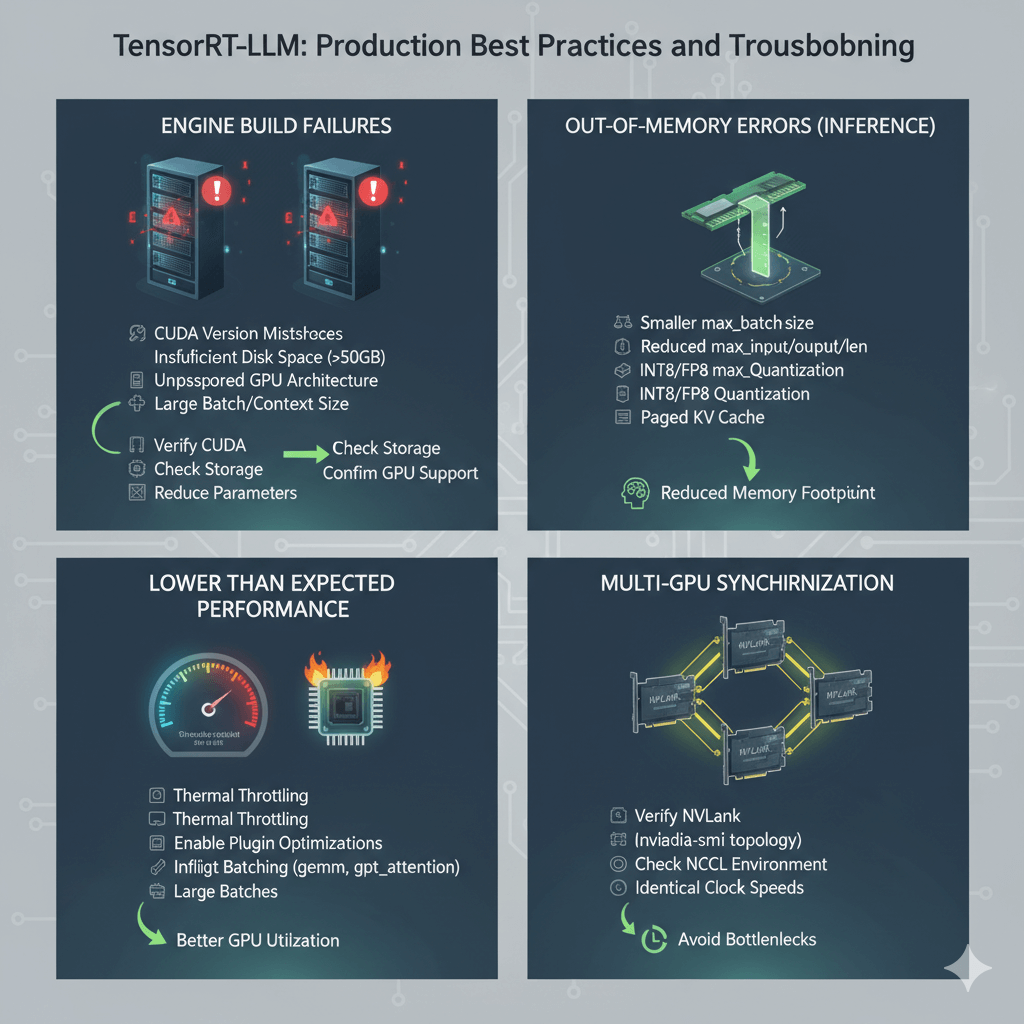
Solve common TensorRT-LLM deployment problems proactively. Engine build failures often result from CUDA version mismatches, insufficient disk space (engines can exceed 50GB), unsupported GPU architecture, or overly large batch size or context length parameters.
Verify CUDA compatibility, check available storage, confirm GPU architecture support (Ampere, Ada, or Hopper), and try reducing configuration parameters.
Address out-of-memory errors during inference by rebuilding the engine with smaller max_batch_size, reducing max_input_len and max_output_len, using INT8 or FP8 quantization, or enabling paged KV cache. These adjustments reduce memory footprint while maintaining functionality.
Investigate lower than expected performance by verifying GPUs are not thermal throttling with nvidia-smi, enabling all plugin optimizations including gemm_plugin and gpt_attention_plugin, using inflight batching for better GPU utilization, and checking that batch sizes are large enough to saturate the GPU. Undersized batches leave GPU resources idle.
For multi-GPU synchronization issues, verify NVLink is active using nvidia-smi topology commands, check NCCL environment variables are properly configured, and ensure all GPUs have identical clock speeds to avoid synchronization bottlenecks.
Conclusion
TensorRT-LLM delivers 20-40% better inference performance than vLLM through hardware-specific optimizations and low-level kernel compilation.
The complexity tradeoff includes model conversion, hardware-specific engine building, and careful parameter tuning. Deploy TensorRT-LLM for high-traffic production workloads where performance directly impacts costs and you serve specific models long-term.
Build INT8 quantized engines for 30-50% throughput gains with minimal quality loss. Use Triton Inference Server for production deployments with HTTP/gRPC APIs and monitoring.
Maintain separate engines for each GPU type as engines are not portable across architectures. For teams with engineering resources and maximum performance requirements on NVIDIA GPUs, TensorRT-LLM provides the fastest path to production LLM inference.
TensorRT-LLM FP8 Supported GPUs - Full Compatibility List (2026)
TensorRT-LLM FP8 quantization requires NVIDIA Hopper or Ada Lovelace architecture with native FP8 tensor core support. Supported GPUs: H100 SXM and PCIe (80GB variants), H200, A100 SXM and PCIe (80GB and 40GB), L40S, L40, and RTX 4090. The RTX 3090, A30, and V100 do NOT support FP8 — use FP16 or INT8 quantization instead. For A100, FP8 was added in TensorRT-LLM v0.7+ via the --strongly_typed flag in trtllm-build. Verify support: trtllm-build --help | grep strongly_typed
GPU FP8 compatibility table: - H100 SXM/PCIe 80GB: FP8 supported, TensorRT-LLM v0.5+ - A100 SXM/PCIe 80GB/40GB: FP8 supported, TensorRT-LLM v0.7+ - H200: FP8 supported, TensorRT-LLM v0.9+ - L40S: FP8 supported, TensorRT-LLM v0.7+ - RTX 4090: FP8 supported, TensorRT-LLM v0.7+ - RTX 3090 / A30 / V100: FP8 NOT supported — use INT8 or FP16
trtllm-build FP8 Quantization - Step-by-Step Commands
To build a TensorRT-LLM engine with FP8 quantization on A100: 1. Convert checkpoint: python convert_checkpoint.py --model_dir /path/to/model --output_dir ./ckpt --dtype float16 2. Quantize to FP8: python quantize.py --model_dir ./ckpt --output_dir ./ckpt_fp8 --dtype float16 --qformat fp8 --kv_cache_dtype fp8 3. Build engine: trtllm-build --checkpoint_dir ./ckpt_fp8 --output_dir ./engine --strongly_typed --gemm_plugin float16 --max_batch_size 32 Common error: "FP8 not supported on this device" — verify your GPU is A100/H100 and TensorRT-LLM is v0.7+. For multi-GPU: add --tensor_parallelism 2 (must be a power of 2).
Frequently Asked Questions
Does TensorRT-LLM support FP8 quantization on A100? Yes. A100 SXM and PCIe (both 80GB and 40GB variants) support FP8 in TensorRT-LLM v0.7 and later. Use the --strongly_typed flag in trtllm-build to enable FP8 mode.
How do I set up multi-GPU tensor parallelism in TensorRT-LLM? Add --tensor_parallelism N to the trtllm-build command (N must be a power of 2: 2, 4, or 8). At runtime, launch with: mpirun -n N python run.py ...
What performance gain does FP8 give over FP16 in TensorRT-LLM? Typical throughput improvement is 1.3-1.8x for inference vs FP16. Memory reduction is approximately 40% (FP8 uses 1 byte vs 2 bytes per weight). Accuracy loss is minimal — under 1% on standard benchmarks. Lower memory allows larger batch sizes, amplifying the effective throughput gain.
Summarize this post with:
Ready to put this into production?
Our engineers have deployed these architectures across 100+ client engagements — from AWS migrations to Kubernetes clusters to AI infrastructure. We turn complex cloud challenges into measurable outcomes.